
Using Action to Trigger a Capture Session
You can use an Action command script to initiate a capture session automatically upon detection of a particular event, such as suspicious activity or an error condition. This powerful feature allows you to capture user activity silently and invisibly whenever these conditions are detected by Audit real time auditing or if a violation of Firewall rules occurs.
Real time auditing must be active at in order to take advantage of this feature. Additionally, if you are using a Firewall rule, you must configure the IBM i (OS/400) server to allow Action to react. Refer to the documentation for these products for further details.
To use Action to trigger a Capture Session:
- Define a real time auditing rule, as described in the Audit manual.
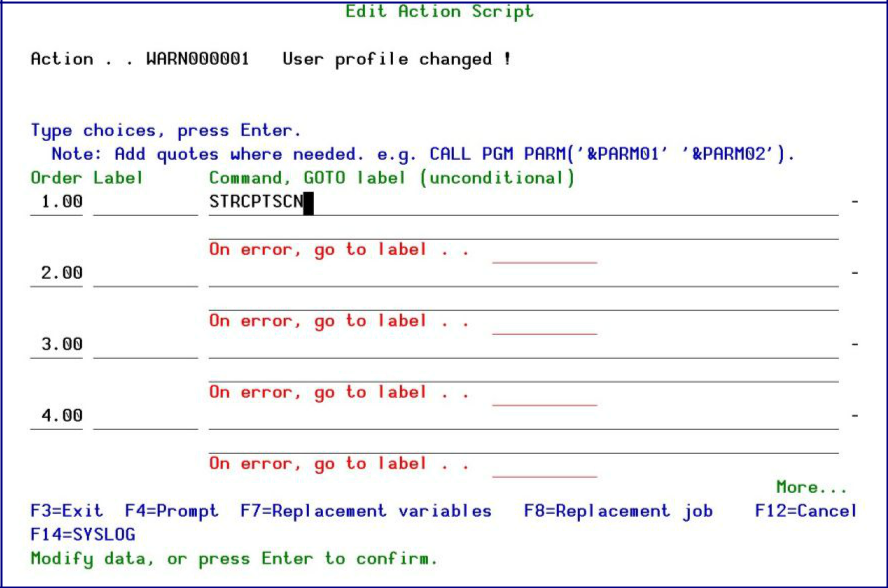
- Define your rule until the Edit Action Script screen appears.
- Enter the STRCPTSCN command to capture a device or the STRCPTUSR command to capture a user profile on the first line.
- Press F4 to add parameters. The Start Capture Screen appears.
- Press F10 to view all parameters.
- Enter the required parameters and press Enter .
- Press F7 and select variables from the list. This inserts a replacement variable in the command script representing session (job) name.
- Press Enter twice to complete the process.
Your capture session will begin automatically whenever the conditions defined in your rule are fulfilled.